
AI Watch Folders
AI watch folders use artificial intelligence to automatically determine the best folder location and file name for each incoming document. Unlike standard watch folders that dump everything into a single destination, AI watch folders analyze each file and sort it intelligently.
Key difference from standard watch folders: Standard watch folders import into a single folder. AI watch folders operate at the top-level file cabinet and use AI to decide which folder within that cabinet each document belongs in, and what it should be named.
How It Works
- You point an AI watch folder at a source directory on your server.
- You assign it to a top-level file cabinet in DocMan (not a specific folder).
- When a new file arrives, DocMan sends it to the configured AI connection (self-hosted or cloud).
- The AI analyzes the document content — either by reading the image directly (vision mode) or by processing extracted OCR text.
- Based on your folder mode and template, the AI determines the best folder location and suggests a file name.
- The document is placed in the Review Queue. If auto-approve is enabled and the confidence meets your threshold, it's filed automatically.
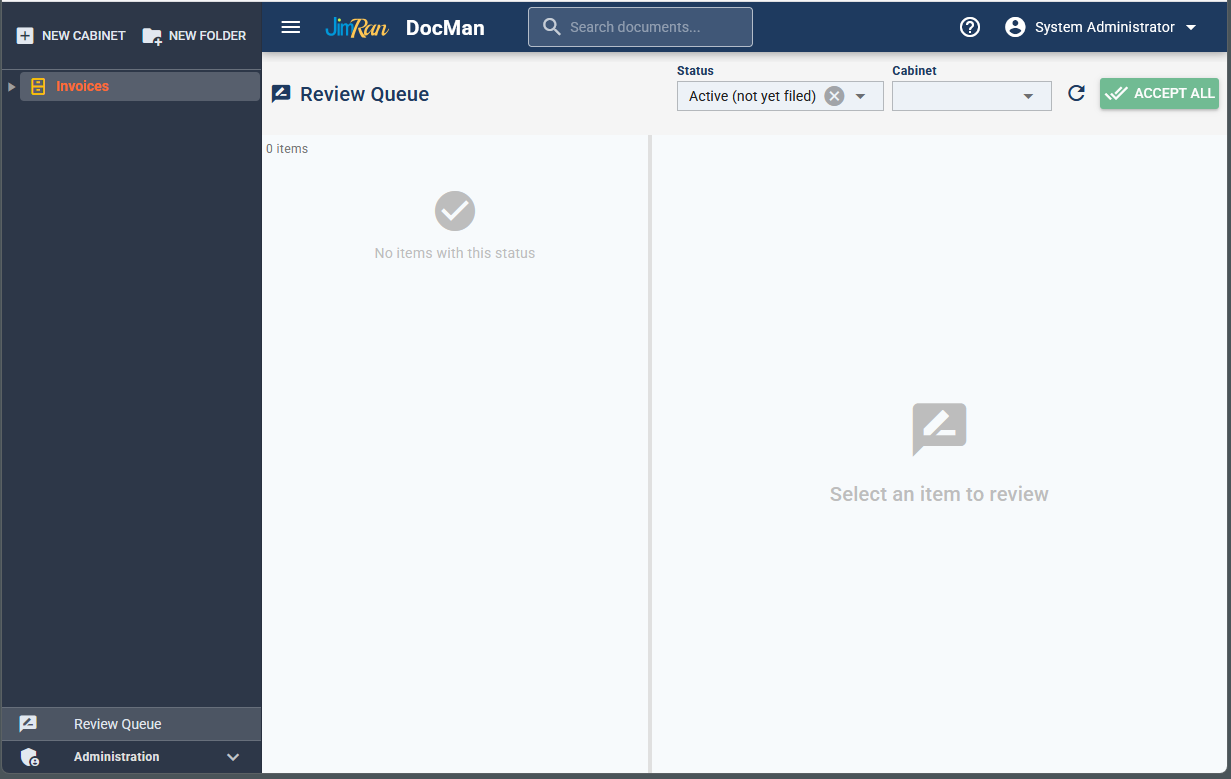
The Review Queue — AI-suggested filings are reviewed here before final placement.
Setting Up AI Connections
Before creating AI watch folders, you need at least one AI connection. Navigate to Administration → AI Connections in the left sidebar.
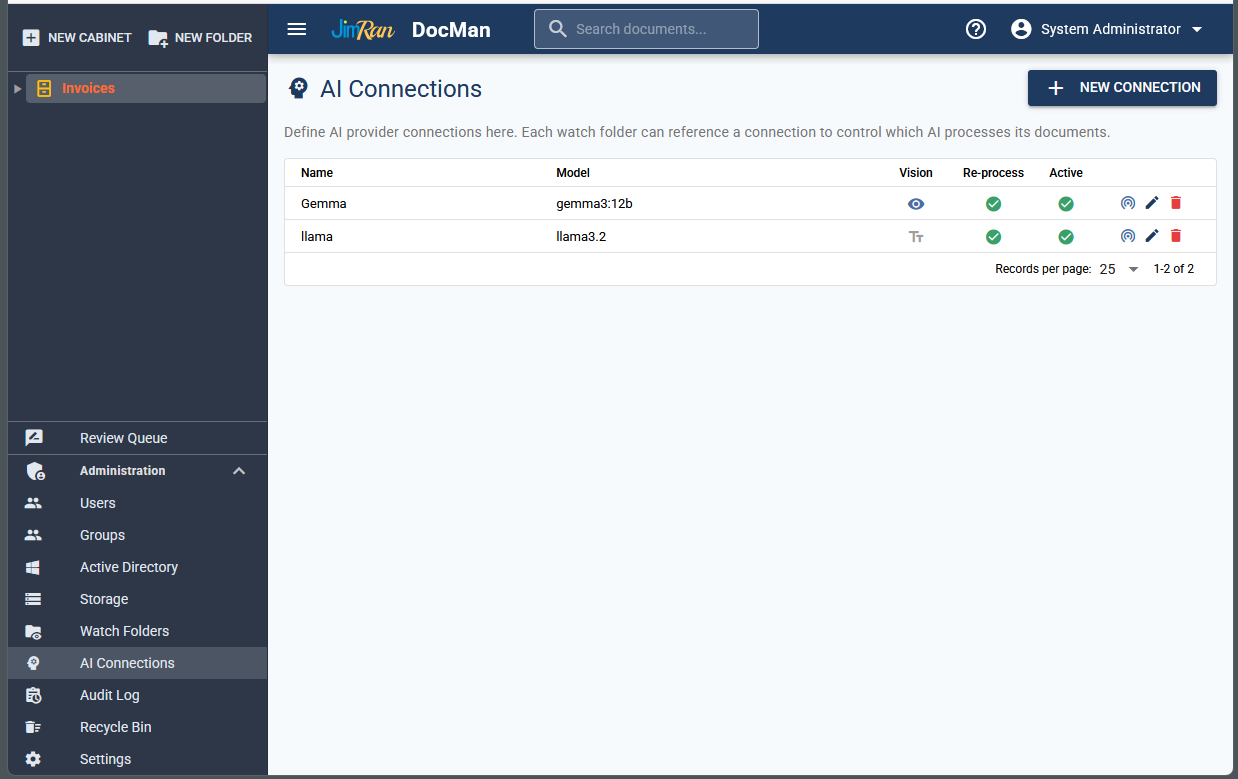
AI Connections page — configure your self-hosted Ollama models or cloud AI providers here.
Each connection defines:
- Name: A friendly label (e.g., "Gemma", "llama").
- API URL: The endpoint (e.g.,
http://localhost:11434for Ollama). - Model: The model name (e.g.,
gemma3:12b,llama3.2). - Vision: Whether the model supports image input (direct page analysis).
- Re-process: Allow re-running AI on previously processed documents.
Folder Naming Modes
AI watch folders support two folder modes, configured per cabinet in Cabinet Settings → AI Settings → Filing.
Mode 1: Existing Folders (Pre-Defined)
The AI receives a list of all existing folders in the cabinet and picks the best match. No new folders are created. This is ideal when you have a known, fixed set of categories — like a medical chart with standard sections.
Example: Medical chart cabinet
Patient: John Smith
  ├── Demographics
  ├── Insurance
  ├── Lab Results
  ├── Radiology
  ├── Progress Notes
  ├── Prescriptions
  ├── Referrals
  └── Correspondence
When a lab report is scanned, the AI reads the document, identifies it as a lab result, and files it into Lab Results. A referral letter goes into Referrals. The folders are never created or modified — the AI just picks the best match from what already exists.
Example: Accounting cabinet
Accounting
  ├── Invoices
  ├── Receipts
  ├── Bank Statements
  ├── Tax Documents
  ├── Payroll
  └── Contracts
Mode 2: Template (Auto Folder Creation)
You define a folder structure using a template with tokens. The AI extracts values from each document (company name, date, document type, etc.) and builds the folder path automatically. Folders are created as needed.
The folder template is configured in Cabinet Settings → AI Settings → Filing → Folder Template.
Folder Template Tokens
Tokens are placeholders wrapped in angle brackets that get replaced with AI-extracted values. You combine them with / to build folder paths.
AI-Extracted Field Tokens
| Token | Description | Example Output |
|---|---|---|
<Company> | Full company or vendor name extracted from the document (sanitized for the file system). | Acme Corp |
<CompanyFirstLetter> | First letter of the company name, uppercase. | A |
<DocType> | Document type (invoice, receipt, contract, letter, etc.). | Invoice |
<Amount> | Dollar amount extracted from the document. | 1,250.00 |
<DocumentName> | Original filename of the imported file. | scan_001.pdf |
Date Tokens
Date tokens are smart — they use the document date extracted by the AI first. If no document date is found, they fall back to the import date.
| Token | Description | Example Output |
|---|---|---|
<YYYY> or <Year> | 4-digit year. | 2026 |
<YY> | 2-digit year. | 26 |
<Month> | Full month name. | April |
<MM> | 2-digit month number. | 04 |
<M> | Month number, no leading zero. | 4 |
<DD> | 2-digit day of month. | 20 |
<D> | Day of month, no leading zero. | 20 |
<Day> | Day of week name. | Sunday |
<Date> | Full date in YYYY-MM-DD format. | 2026-04-20 |
Pre-Built Date Format Tokens
| Token | Example Output |
|---|---|
<YYYY-MM-DD> | 2026-04-20 |
<MM/DD/YYYY> | 04/20/2026 |
<MM-DD-YYYY> | 04-20-2026 |
<YYYYMMDD> | 20260420 |
Explicit Date Source Tokens
If you need to force a specific date source instead of the smart fallback:
| Token | Description |
|---|---|
<DocDate>, <DocYear>, <DocMonth>, <DocDay> | Date extracted from the document content only. No fallback. |
<CreatedDate>, <CreatedYear>, <CreatedMonth>, <CreatedDay> | Import timestamp only. Always available. |
Folder Structure Examples
Below are common folder templates and the structures they produce. Each example shows how DocMan would organize an "Invoices" cabinet receiving documents from multiple vendors.
<CompanyFirstLetter>/<Company>/<YYYY>
Alpha prefix / Company name / Year. Best for large volumes — the alphabetical prefix keeps the top level manageable when you have hundreds of vendors.
Invoices                          (Cabinet)
  ├── A                           (<CompanyFirstLetter>)
  │   ├── Acme Corp               (<Company>)
  │   │   ├── 2025                (<YYYY>)
  │   │   └── 2026
  │   └── Alberts Machinery
  │       └── 2026
  ├── B
  │   └── Big Signs Plus
  │       └── 2023
  ├── E
  │   └── East Repair Inc.
  │       └── 2019
  └── T
      └── Townplace Roadhouse
          └── 2026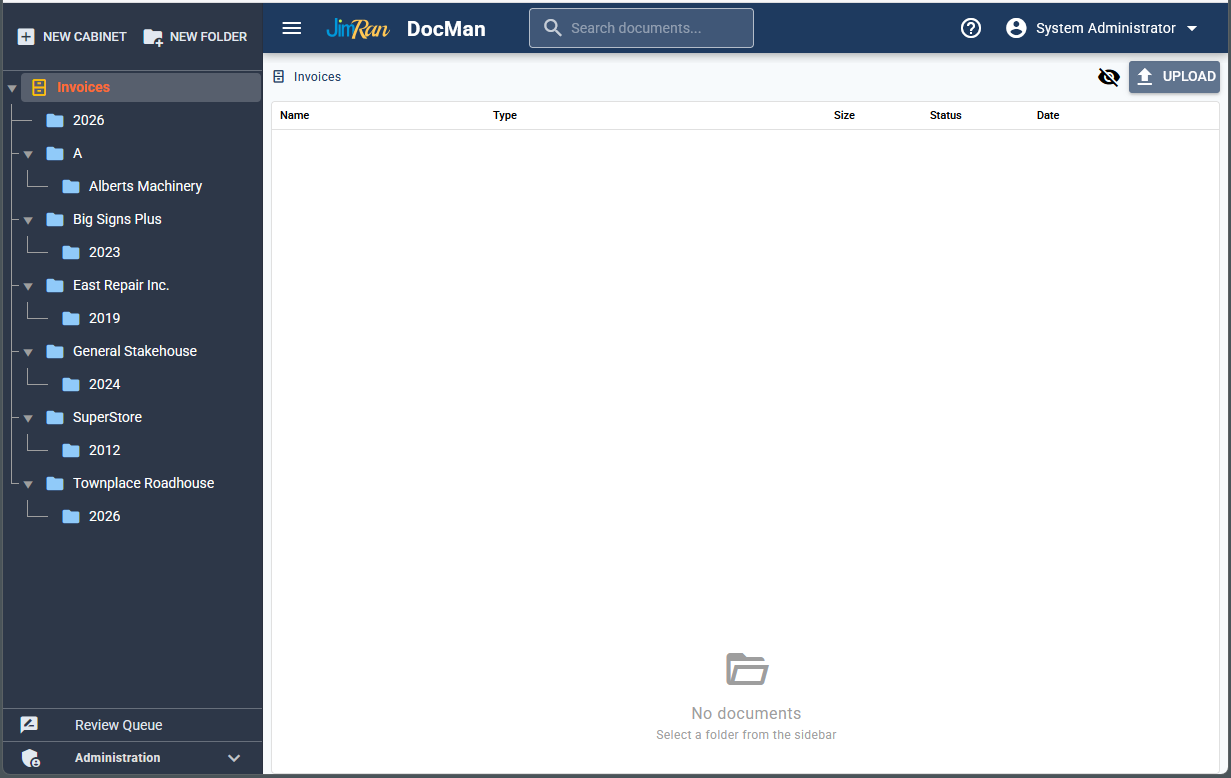
A real DocMan cabinet using AI-generated folder structures. Note the alpha prefix "A" with "Alberts Machinery" nested underneath, and company/year folders throughout.
<Company>/<YYYY>
Company name / Year. Simpler layout that works well when you have a manageable number of entities (under ~50).
Invoices                          (Cabinet)
  ├── Acme Corp                   (<Company>)
  │   ├── 2025                    (<YYYY>)
  │   └── 2026
  ├── Big Signs Plus
  │   └── 2023
  ├── East Repair Inc.
  │   └── 2019
  └── Townplace Roadhouse
      └── 2026
<YYYY>/<Company>
Year / Company name. Year-first makes it easy to archive or close out an entire year. Good when time is the primary way you think about your documents.
Invoices                          (Cabinet)
  ├── 2019                        (<YYYY>)
  │   └── East Repair Inc.        (<Company>)
  ├── 2023
  │   └── Big Signs Plus
  ├── 2025
  │   └── Acme Corp
  └── 2026
      ├── Acme Corp
      ├── Alberts Machinery
      └── Townplace Roadhouse
<Company>/<YYYY>/<MM>-<Month>
Company / Year / Month. Most granular. Useful for high-volume operations where you need to locate documents by vendor and month — like accounts payable departments processing hundreds of invoices per month.
Invoices                          (Cabinet)
  ├── Acme Corp                   (<Company>)
  │   └── 2026                    (<YYYY>)
  │       ├── 01-January          (<MM>-<Month>)
  │       ├── 02-February
  │       ├── 03-March
  │       └── 04-April
  └── Big Signs Plus
      └── 2023
          ├── 09-September
          └── 11-November
Where to configure: Right-click a cabinet in the sidebar → Cabinet Settings → AI Settings → Filing section. Set the Folder Structure dropdown to "Use a template to build folder path" and enter your template in the Folder Template field.
AI Processing Modes
Each AI connection can operate in one of two processing modes, configured in the AI connection's Vision setting.
| Mode | How It Works | Best For |
|---|---|---|
| Vision (Image) | The document page is sent as an image directly to the AI model. The model reads the content visually, including layout, logos, letterheads, and handwriting. | Scanned documents, faxes, forms with layouts that matter, documents with logos or letterheads that help identify the source. |
| OCR Text Only | DocMan first extracts text via Tesseract OCR, then sends only the extracted text to the AI model. Faster and uses less GPU memory. | Clean, text-heavy documents like invoices, letters, and reports. Works well with smaller AI models or lower-powered hardware. |
Recommendation: Start with OCR Text mode if you're running a smaller GPU or want faster processing. Switch to Vision mode for documents where visual layout matters (forms, mixed-format documents, or when OCR quality is poor). The gemma3:12b model supports both modes; llama3.2 supports OCR text only.
Self-Hosted AI with Ollama
DocMan integrates with Ollama for fully self-hosted, on-premise AI processing. No data leaves your network. Ollama runs AI models locally on your server's GPU (or CPU, though GPU is strongly recommended).
Recommended Models
| Model | VRAM Required | Best For |
|---|---|---|
| gemma3:12b | ~8 GB | Best overall accuracy. Supports both vision and OCR text modes. Recommended for dedicated servers with a modern GPU (RTX 3060 12GB or better). |
| llama3.2 | ~4 GB | Good accuracy with lower hardware requirements. OCR text mode only. A solid choice for workstations or servers with a lower-end GPU (GTX 1660, RTX 3050, etc.). |
Installing Ollama on Windows
-
Download the installer
Go tohttps://ollama.com/download/windowsand download the Windows installer. -
Run the installer
RunOllamaSetup.exeand follow the prompts. Ollama installs as a background service and starts automatically. -
Verify installation
Open a terminal (Command Prompt or PowerShell) and run:
You should see the installed version number.ollama --version -
Pull a model
Download the recommended model:
Or for lower-powered hardware:ollama pull gemma3:12b
The download may take several minutes depending on your internet connection.ollama pull llama3.2 -
Test the model
Verify the model is working:
You should get a response. Pressollama run gemma3:12b "Hello, are you working?"Ctrl+Dto exit. -
Configure DocMan
In DocMan, go to Administration → AI Connections and click New Connection. Set:- Name: Gemma (or any label)
- API URL:
http://localhost:11434 - Model:
gemma3:12b(orllama3.2) - Vision: Enable for
gemma3:12b, leave off forllama3.2
Installing Ollama on Linux Mint
-
Install Ollama
Open a terminal and run:
This installs Ollama and registers it as a systemd service.curl -fsSL https://ollama.com/install.sh | sh -
Verify installation
ollama --version -
Check that the service is running
You should seesudo systemctl status ollamaactive (running). If not:sudo systemctl start ollama sudo systemctl enable ollama -
Install NVIDIA drivers (if using a NVIDIA GPU)
Linux Mint includes a Driver Manager. Open it from the application menu and install the recommended NVIDIA driver. Reboot after installation.
Verify the GPU is detected and shows available memory.nvidia-smi -
Pull a model
Or for lower-powered hardware:ollama pull gemma3:12bollama pull llama3.2 -
Test the model
ollama run gemma3:12b "Hello, are you working?" -
Configure DocMan
In DocMan, go to Administration → AI Connections and create a new connection with the Ollama URL set tohttp://localhost:11434(or the server's IP if DocMan runs on a different machine) and select your model.
Remote Ollama: If you run Ollama on a separate machine from DocMan, set the OLLAMA_HOST environment variable to 0.0.0.0 on the Ollama server so it accepts connections from other machines. Then use that machine's IP address in DocMan's AI connection (e.g., http://192.168.1.50:11434).
Cloud AI Processing
If you prefer not to run AI locally, DocMan also supports cloud AI providers. Cloud processing offers higher accuracy on complex documents and requires no local GPU hardware. Add a cloud provider as an AI connection in Administration → AI Connections with your API key.
Cloud processing sends document content (image or OCR text) to the provider's API. If data privacy is a concern, use the self-hosted Ollama option instead.
Configuration Reference
AI Watch Folder Settings
Configured in Cabinet Settings → AI Settings → Watch Folders.
| Setting | Description |
|---|---|
| Source Path | The server directory to monitor for incoming files. |
| Target Cabinet | The top-level file cabinet. The AI determines which folder within this cabinet to use. |
| AI Connection | Which AI connection to use for processing documents in this watch folder. |
| File Pattern | Glob pattern for file types to import (default: * for all files). |
| Poll Interval | How often to check for new files, in seconds. Default is 60. |
| Delete After Import | Remove the source file after successfully importing into DocMan. |
| Active | Toggle to enable or disable the AI watch folder. |
Cabinet AI Filing Settings
Configured in Cabinet Settings → AI Settings → Filing.
| Setting | Description |
|---|---|
| Folder Structure | Existing Folders (AI picks from what's there) or Template (AI creates folders from your pattern). |
| Folder Template | Template mode only. The folder path pattern using tokens (e.g., <Company>/<YYYY>). |
| Filename Template | Optional template for renaming files (e.g., <Company> - <DocType> - <Date>). |
| Auto-Approve Threshold | Confidence score (0–100) above which documents are filed automatically without review. Default is 75. Set to 0 to disable auto-approve and review everything. |
Back to: Documentation Overview • Previous: Watch Folders